 User Guide
Promoted Attributes
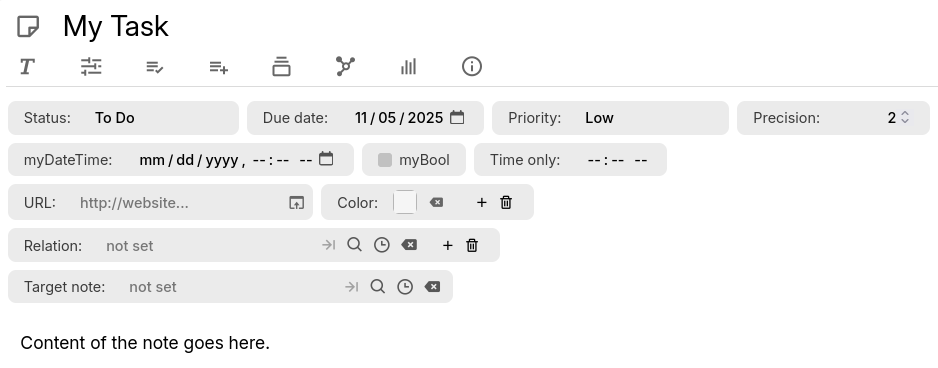
Promoted attributes are attributes which are displayed prominently in the UI which allow them to be easily viewed and edited.
One way of seeing promoted attributes is as a kind of form with several fields. Each field is just regular attribute, the only difference is that they appear on the note itself.
Attributes can be pretty useful since they allow for querying and script automation etc. but they are also inconveniently hidden. This allows you to select few of the important ones and push them to the front of the user.
Attribute definition#
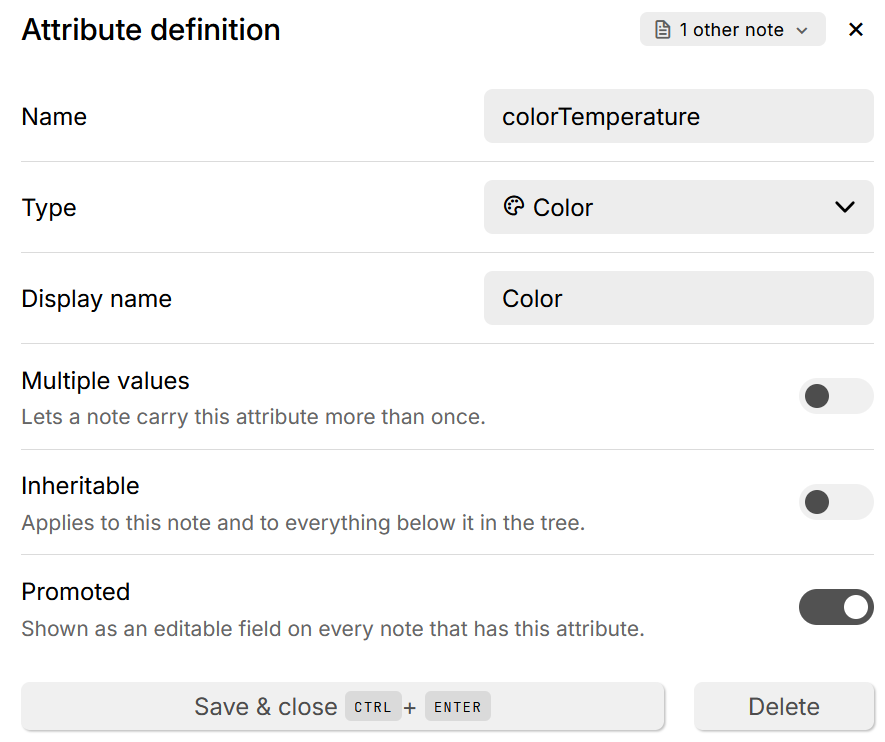
In order to have promoted attributes, there needs to be a way to define them.
Technically, attributes are only name-value pairs where both name and value are strings.
The Attribute definition specifies how should this value be interpreted:
- Is it just string, or is it a date?
- Should we allow multiple values or note?
- Should we promote the attribute or not?
Types of attributes#
Attribute definitions have a dedicated type field which will change how the value will be edited in the promoted attributes section.
The following types are supported:
- Text, the default option which allows any type of text to be edited, similar to normal labels that don't have a type associated.
- Multi-line text, similar to a normal text field, but rendered in a bigger text box that also supports writing on multiple lines.
- Number, will display as a number input field with up/down arrows.
- Optionally a precision which sets how many decimals the value steps by and is displayed with.
- Boolean, which renders as a checkbox for a true/false value.
- Select, which provides a list of user-defined options when editing.
- The list is not fixed, meaning that new options can be easily added from the promoted attribute.
- Renaming an option does not change the existing values since the value is stored as text. Consider a bulk rename.
- The items do not have a custom color or icon. This is intentional as selects are meant to be light-weight. For a more customizable option, consider using Relations instead which use notes as items and those notes can be colorized and also carry an icon.
- Date, which provides a date picker.
- Date & Time, which provides a date & time picker.
- Time, which provides a time picker.
- URL, which provides a button to open the web address in a new window.
- Email, which provides a button to quickly send an email to that address using your operating system's default app.
- Phone, which provides a button to quickly call that number using your operating system's default app.
- Color, which provides a color picker and a way to remove the value.
- Relation, which points to another note and uses Relations instead of Labels.
Creating a new promoted attribute definition#
To create a new promoted attribute:
- Go to a note.
- Go to Owned Attributes in the Ribbon.
- Press the + button.
- Select either Add new label definition or Add new relation definition.
- Select the name which will be name of the label or relation that will be created when the promoted attribute is edited.
- Ensure Promoted is checked in order to display it at the top of notes.
- Optionally, choose an Alias which will be displayed next to the promoted attribute instead of the attribute name. Generally it's best to choose a “user-friendly” name since it can contain spaces and other characters which are not supported as attribute names.
- Check Inheritable to apply it to this note and all its descendants. To keep it only for the current note, un-check it.
- Press “Save & Close” to apply the changes.
How attribute definitions actually work#
When a new promoted attribute definition is created, it creates a corresponding label prefixed with either label or relation, depending on the definition type:
#label:myColor(inheritable)="promoted,alias=Color,multi,color"The only purpose of the attribute definition is to set up a template. If the attribute was marked as promoted, then it's also displayed to the user for easy editing.
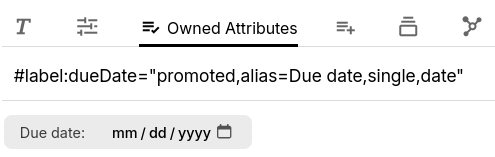 |
Notice how the promoted attribute definition only creates a “Due date” box above the text content. |
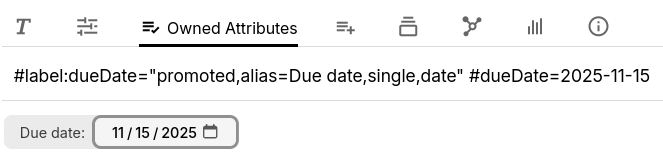 |
Once a value is set by the user, a new label (or relation, depending on the type) is created. The name of the attribute matches one set when creating the promoted attribute. |
So there's one attribute for value and one for definition. But notice how an definition attribute can be made Inheritable, meaning that it's also applied to all descendant notes. In this case, the definition used for the whole sub-tree while "value" attributes are for each not individually.
Using system attributes#
It's possible to create promoted attributes out of system attributes, to be able to easily alter them.
Here are a few practical examples:
- Collections already make use of this practice, for example:
- Calendars add “Start Date”, “End Date”, “Start Time” and “End Time” as promoted attributes. These map to system attributes such as
startDatewhich are then interpreted by the calendar view. - Presentation adds a “Background” promoted attribute for each of the slide to easily be able to customize.
- Calendars add “Start Date”, “End Date”, “Start Time” and “End Time” as promoted attributes. These map to system attributes such as
- The Trilium documentation (which is edited in Trilium) uses a promoted attribute to be able to easily edit the
#shareAlias(see Sharing) in order to form clean URLs. - If you always edit a particular system attribute such as
#color, simply create a promoted attribute for it to make it easier.
Inverse relation#
Some relations always occur in pairs - my favorite example is on the family. If you have a note representing husband and note representing wife, then there might be a relation between those two of isPartnerOf. This is bidirectional relationship - meaning that if a relation is pointing from husband to wife then there should be always another relation pointing from wife to husband.
Another example is with parent-child relationship. Again these always occur in pairs, but in this case it's not exact same relation - the one going from parent to child might be called isParentOf and the other one going from child to parent might be called isChildOf.
Relation definition allows you to specify such "inverse relation" - for the relation you just define you specify which is the inverse relation. Note that in the second example we should have two relation definitions - one for isParentOf which defines isChildOf as inverse relation and then second relation definition for isChildOf which defines isParentOf as inverse relation.
What this does internally is that whenever we save a relation which has defined inverse relation, we check that this inverse relation exists on the relation target note. Similarly, when we delete relation, we also delete inverse relation on the target note.
See also#
- The Table collection makes heavy use of promoted attributes to define the columns of the table, since they already carry the type information. When made inheritable, it's also easy to change those fields when the child notes are opened.