 User Guide
Right Sidebar
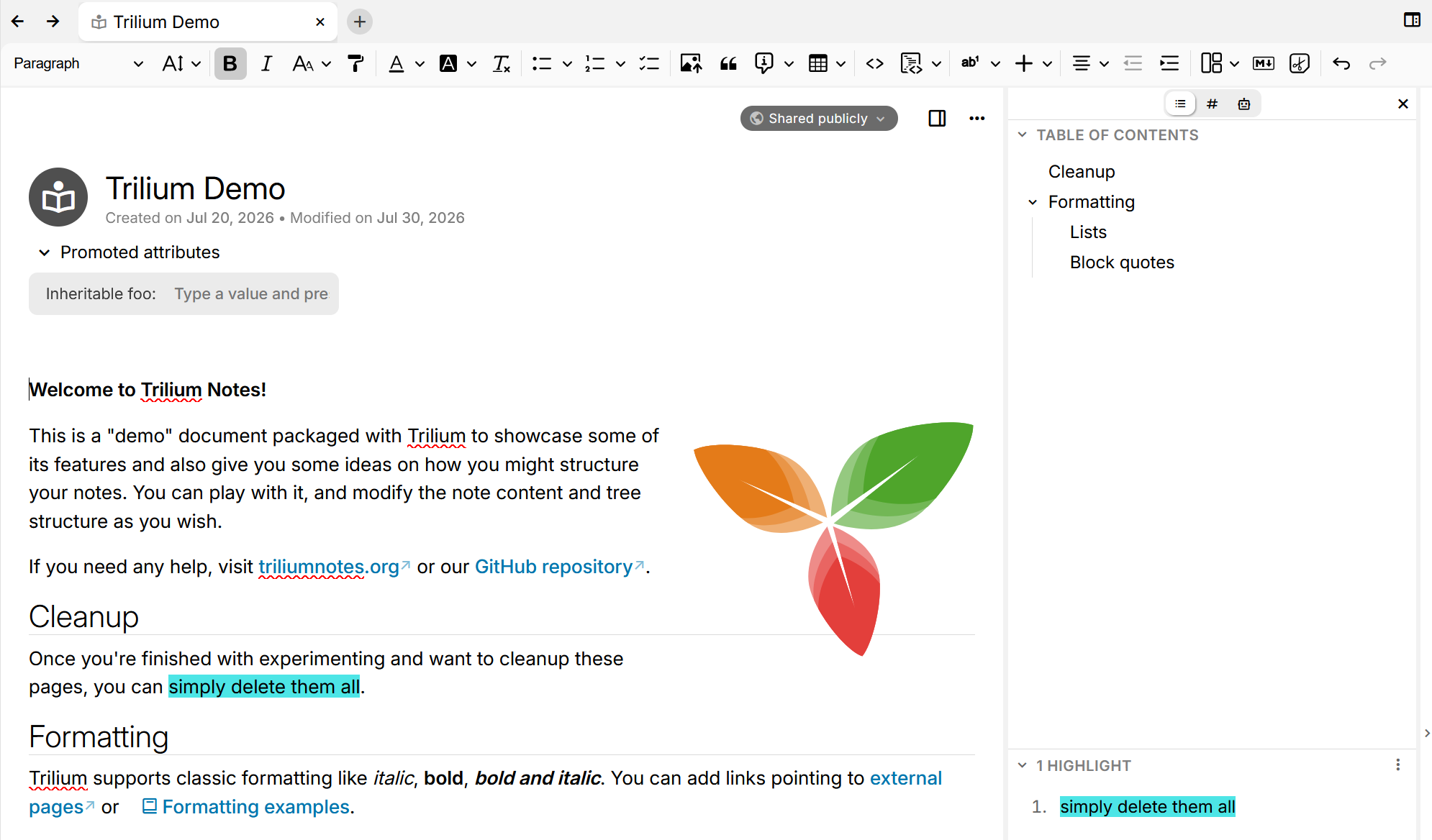
The right sidebar displays specific content for the current note. The sidebar is grouped into multiple tabs:
- Outline tab, which displays the table of contents, highlights and other navigation-related sections depending on the note type.
- Attributes tab, which provides a visual editor for the current note's Attributes.
- AI chat tab, which uses the AI integration to chat, with optional access to the current note.
- Connections tab, which groups together the note map, note paths, backlinks and similar notes.
Toggling the right sidebar#
There are two ways to toggle the right sidebar:
- Via the
 icon near the title bar, which toggles whether the sidebar is docked.
 - Via the Toggle right pane keyboard shortcut, which is not assigned by default.
Peeking the sidebar#
There is a small strip near the right edge of the app which shows an arrow icon.
- When the sidebar is hidden, pressing the edge will peek the sidebar.
- In this mode the sidebar is shown temporarily above the content, without shifting the content of your notes.
- Clicking outside the sidebar while in peek mode will simply hide the sidebar. Same goes for the X button and clicking on the right edge.
- Pressing the pin icon will dock the sidebar.
- When the sidebar is docked, pressing the edge will hide the sidebar (similar to the toggle icon at the top).