 User Guide
Images
Trilium supports storing and displaying images. Supported formats are PNG, JPEG, GIF, BMP, WebP, AVIF and SVG.
An image can be uploaded in the form of note's attachment or as a standalone note placed into the note tree. Its reference can be copied into a text note, in order to display it in the text itself.
Uploading images#
To add an image to the note:
- Simply drag it from file explorer onto the note editor inside Trilium and the image will be uploaded.
- Alternatively, from the Formatting toolbar look for the Insert image icon.
- You can also copy and paste an image from web (see section below).
Clipboard & automatic download of images#
Trilium has a special handling for images copied to and pasted from the clipboard.
For a mix of text and images, the images are downloaded automatically by the server (or desktop app, depending on what is being used).
- This means that the image must be publicly accessible and reachable from wherever Trilium is running. Inaccessible images will end up as broken images.
If a single image is pasted into Trilium, it will prefer the image that comes in the clipboard. This makes it possible to copy images that Trilium would not otherwise be able to reach, such as Google Chat, Slack, etc.
When a text with images is copied from Trilium and pasted in another app (such as Microsoft Word or LibreOffice Writer), the images will be preserved.
The automatic download of images is enabled by default and can be toggled from Options → Media → Download images automatically.
Configuring the images#
Clicking on an image will reveal a popup with multiple options:
Alignment#
The first set of options configure the alignment are, in order:
| Icon | Option | Preview | Description |
|---|---|---|---|
 |
Inline | 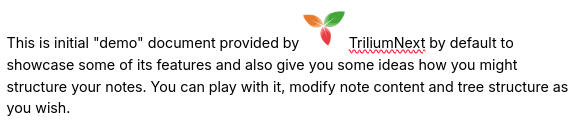 |
As the name suggests, the name can be put inside a paragraph and moved around similarly as if it was a block of text. Use drag & drop or cut-paste to move it around. |
 |
Centered image | 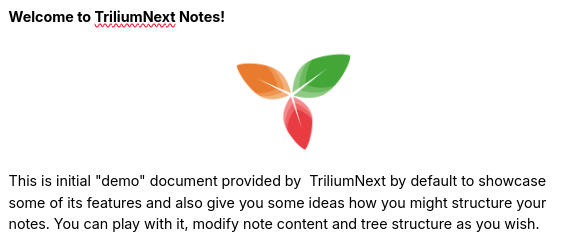 |
The image will be displayed as a block and centered, not allowing text in either the left or right of it. |
 |
Wrap text | 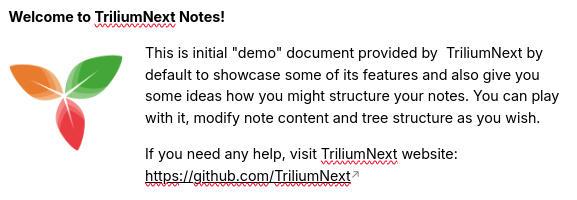 |
The image will be displayed to the left or the right of the text. |
 |
Block align | 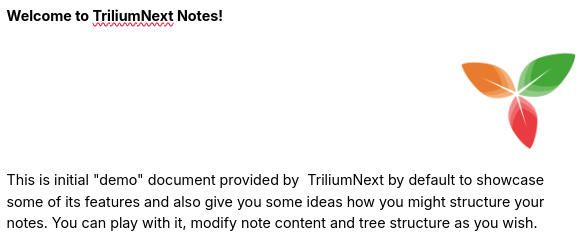 |
Similarly to Centered image, the image will be displayed as a block and aligned either to the left or to the right, but not allowing text to flow on either of its sides. |
Compression#
Since Trilium isn't really meant to be primary storage for image data, it attempts to compress and resize (with pretty aggressive settings) uploaded images before storing them to the database. You may then notice some quality degradation. Basic quality settings is available in Options → Media.
If you want to save images in their original resolution, it is recommended to save them as attachment to note (look for the contextual menu in Note buttons → Import files).
Aligning images side-by-side#
There are generally two ways to display images side by side:
- If they are roughly the same size, simply make the two images in-line, according to the alignment section above. The images can be dragged & dropped onto the same line.
- If they are on different size, create a table with invisible borders.