 User Guide
Connections tab
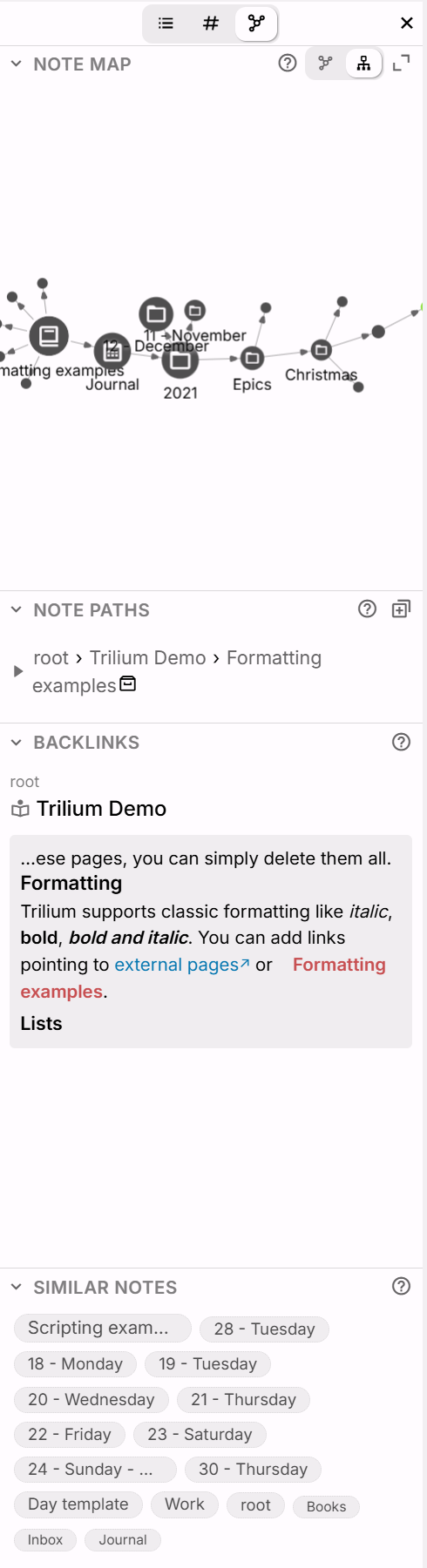
The connections tab groups together all the information about the current note and how it relates to other notes, in four different sections.
Note map#
The note map displays a graph which shows the relation between the current notes and other notes on the hierarchy. There are two types of visualizations, which can be selected from the top-right part of the section:
- The Link map, which displays the relations between notes.
- The Tree map, which displays the hierarchical structure.
The sidebar will remember which visualization is selected, as a global option. Note that note maps also have a #mapType which describes which visualization to use, but the sidebar deliberately ignores that to keep consistency when switching between notes.
The map can also be expanded by pressing the button in the top-right of the section. When expanded, the map is displayed in a separate dialog. Alternatively, all other sections can be collapsed, which will make the note map taller and the sidebar can be dragged to make for more lateral space.
The note map view inside the sidebar is deliberately more compact in order to fit the space: the link map would also show notes that don't have a link to the current note from the hierarchy (creating a cloud of dots) but this is only shown while the map is expanded. Similarly, the link strength and pin configuration buttons are not displayed here.
See also:
- The Note Map note type
- Note Map (Link map, Tree map) for more information on the concept as a whole.
Note paths#
The note paths section displays the locations in which the current note is cloned. Each segment of the note path is clickable, in order to navigate to that note or clone.
A new clone can be created from the top-right button.
Backlinks#
Backlinks list the notes that refer to the current note, as well as a preview of the content where the reference to the note is made.
For more information, see Backlinks.
Similar notes#
Displays a list of notes that appear similar based on the content of the notes and their attributes. For more information, see Similar Notes.