 User Guide
Outline tab
The Outline tab appears in the Right Sidebar and displays the headings and highlights for the current note.
Table of contents#
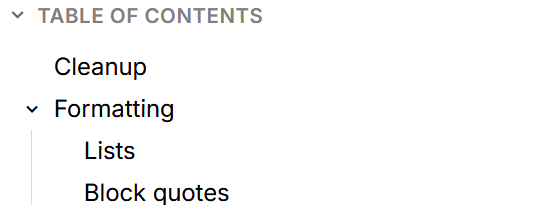
The table of contents displays the titles / headings in the current note and allows easy navigation.
The following note types are supported:
Interaction#
- Clicking on a heading will scroll the document to the position of the heading.
- Pressing the close button will dismiss the table of contents but it can be shown again from the Floating buttons section.
Configuration#
- To change the option globally, go to Text Notes options, look for the Table of Contents section and configure the minimum amount of headings that need to be present in the current note in order for the table of contents to show:
- To always hide it, set the value to a really large number (e.g. 10000).
- To always display it if there's at least a single heading, set the value to 1.
- Use Attributes to configure the table of contents for a particular note:
#toc=showwill show the table of contents for that note regardless of the global settings.- Similarly,
#toc=hidewill always hide the table of contents for that note.
Highlights#
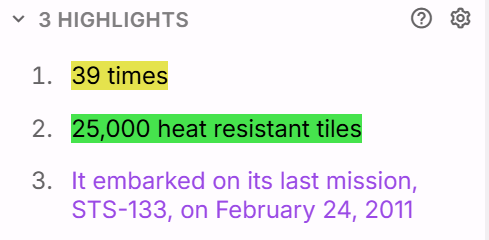
Similar to the table of contents, but instead of headings this feature will list highlighted text from a text note and allow easy navigation to them.
Unlike table of contents which supports multiple note types, the highlights are specific to the Text notes.
Highlighted text is defined as:
- Bold text.
- Italic text.
- Underlined text.
- Text with a foreground color set.
- Text with a background color/highlight set.
Interaction#
- Clicking on a highlighted text will scroll the document to its position.
- For the old layout only, pressing the close button will dismiss the list of highlights but it can be shown again from the Floating buttons section.
Configuration#
- Globally, it's possible to toggle the display of each category of highlighted text (as defined above)
- For the new layout, pressing the gear button in the top-right part of the section will reveal a menu to toggle between the highlight categories.
- Alternatively, they can be changed by going to Text Notes settings and looking for the Highlights List section.
- For the old layout only, to suppress the display of highlighted text for one specific note, use Attributes to add the
#hideHighlightWidgetlabel.
PDF-specific outline#
When PDFs are opened in Trilium, the Right Sidebar is augmented with PDF-specific navigation, with the following features:
- Table of contents/outline
- All the headings and “bookmarks” will be displayed hierarchically.
- The heading on the current page is also highlighted (note that it can be slightly offset depending on how many headings are on the same page).
- Clicking on a heading will jump to the corresponding position in the PDF.
- Pages
- A preview of all the pages with a small thumbnail.
- Clicking on a page will automatically navigate to that page.
- Annotations
- Highlight and comment annotations are listed here.
- For the old layout, this feature is not directly available, however there is a listing of comments directly in the PDF toolbar.
- Attachments
- If the PDF has its own attachments (not to be confused with Trilium's Attachments), they will be displayed in a list.
- Some information such as the name and size of the attachment are displayed.
- It's possible to download the attachment by clicking on the download button.
- Layers
- A less common feature, if the PDF has toggle-able layers, these layers will be displayed in a list here.
- It's possible to toggle the visibility for each individual layer.