 User Guide
Content language & Right-to-left support
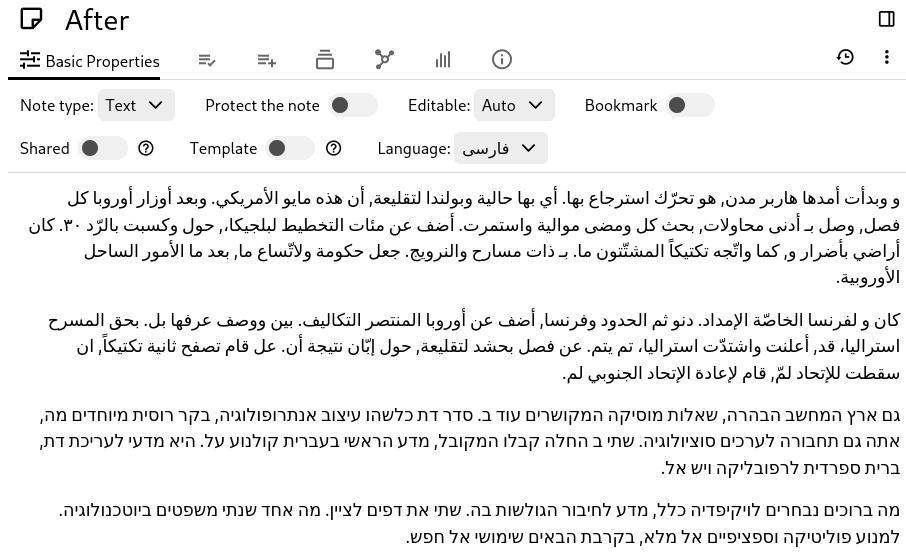
The content language determines:
- The spell-checking of the note, when in a browser. The desktop installation has a dedicated spellchecking section.
- Whether the text is displayed from right-to-left, for languages such as Arabic, Hebrew, etc.
- How typed quotes are automatically replaced (e.g. English uses
“text”, whereas some languages use«text»).
Setting the language of a single note#
To set the language of the content of a Text note:
- On the new layout, there is a language selector in the Status bar.
- On the old layout, go to the Ribbon → Basic Properties and look for the Language field.
Adjusting the list of languages#
By default there will be no language configured, they can be configured by going to Options → Language & Region or by selecting the Configure languages item when setting the language.
Default content language#
Notes that do not have a language of their own follow Options → Language & Region → Default content language. It is set to English initially, and can be set to any content language, or to Based on the application's language.
If a note has a language set, it always takes precedence over the default.